
A Guide to Setting Up a Dual-Monitor Workspace: Boosting Productivity and Efficiency
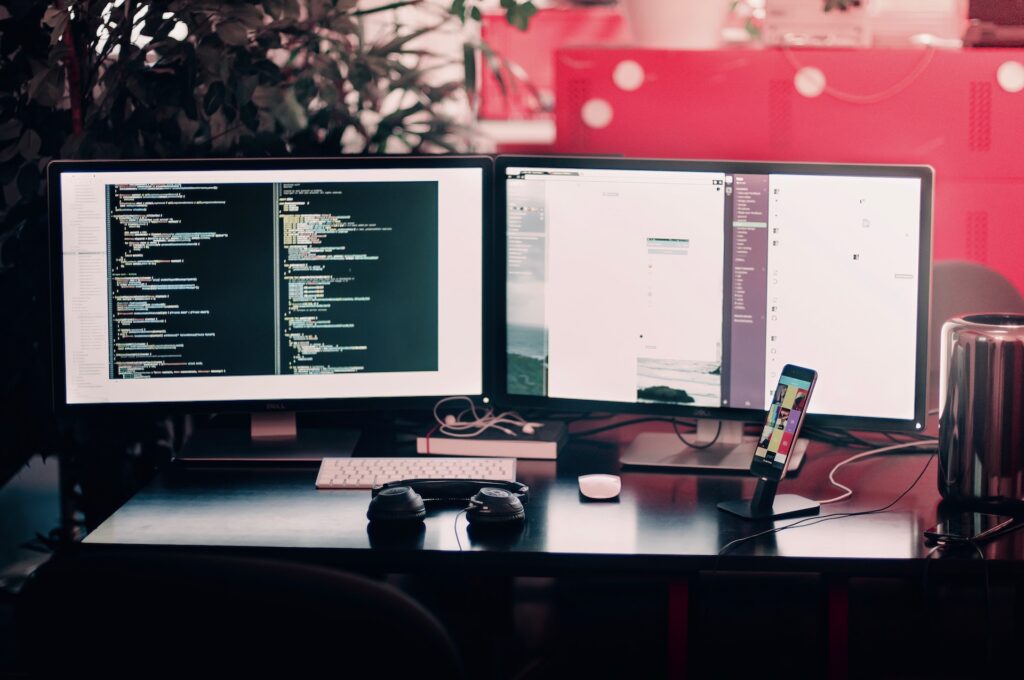
Curious about the advantages of a dual-monitor setup? Check out our previous article, ‘The Dual Monitor Dilemma: Do I Really Need Two Screens?‘ for insights on whether a second monitor is right for you.
As the demand for increased productivity and efficient multitasking rises, the appeal of a dual-monitor setup becomes more evident. Setting up two monitors may seem like a daunting task for some, but with the right guidance, it can be a straightforward process that significantly enhances your workspace. In this guide, we’ll walk you through the step-by-step process of setting up a dual-monitor configuration.
Check Your Hardware:
Before diving into the setup process, ensure that your computer hardware supports a dual-monitor setup. Most modern computers come equipped with multiple video outputs, such as HDMI, DisplayPort, or VGA. Verify the available ports on your computer and ensure you have the necessary cables.
Choose the Right Monitors:
When selecting monitors for a dual setup, consider factors such as size, resolution, and connectivity. Ideally, both monitors should have the same resolution to ensure a seamless visual experience. Additionally, if your computer has different types of video outputs, make sure your monitors are compatible.
Connect Your Monitors:
Connect one end of the video cable to your computer’s video output port and the other end to the corresponding port on the first monitor. Repeat this process for the second monitor. If you have a desktop computer with a dedicated graphics card, you may need to use the video outputs on the graphics card rather than those on the motherboard.
Adjust Display Settings:
Once your monitors are connected, you’ll need to configure your computer’s display settings. Right-click on the desktop and select “Display Settings” (on Windows) or “System Preferences” > “Displays” (on macOS). Here, you can arrange the monitors based on their physical layout and set the primary display. Adjust the resolution to ensure a crisp and clear display.
Extend or Duplicate:
Decide whether you want to extend your desktop across both monitors or duplicate the same content on each screen. Extending your display provides more screen real estate for multitasking, while duplicating can be useful for presentations or mirroring content.
Fine-Tune Display Orientation:
In the display settings, you can also adjust the orientation of each monitor. For example, you may want one monitor in landscape mode and the other in portrait mode, depending on your preferences and the nature of your work.
Update Graphics Drivers:
To ensure optimal performance and compatibility, it’s a good idea to check for and update your graphics drivers. Visit the website of your graphics card manufacturer (NVIDIA, AMD, or Intel) and download the latest drivers for your specific model.
Cable Management:
To maintain a clean and organized workspace, invest some time in cable management. Use cable ties or clips to bundle and secure your cables, preventing them from tangling or cluttering your desk.
Conclusion:
Setting up a dual-monitor workspace can significantly enhance your productivity and streamline your workflow. With the right hardware, proper configuration, and a bit of cable management, you can enjoy the benefits of a spacious and efficient workspace. Whether you’re a professional handling complex tasks or a casual user looking to improve your computing experience, a dual-monitor setup is a versatile solution that caters to a wide range of needs.
Listings Related to the Article: A Guide to Setting Up a Dual-Monitor Workspace: Boosting Productivity and Efficiency
GeeksForGeeks
GeeksForGeeks is an online hub tailored for computer enthusiasts, offering a comprehensive collection of meticulously crafted, insightful articles covering computer science and programming topics.
More Articles Like: A Guide to Setting Up a Dual-Monitor Workspace: Boosting Productivity and Efficiency
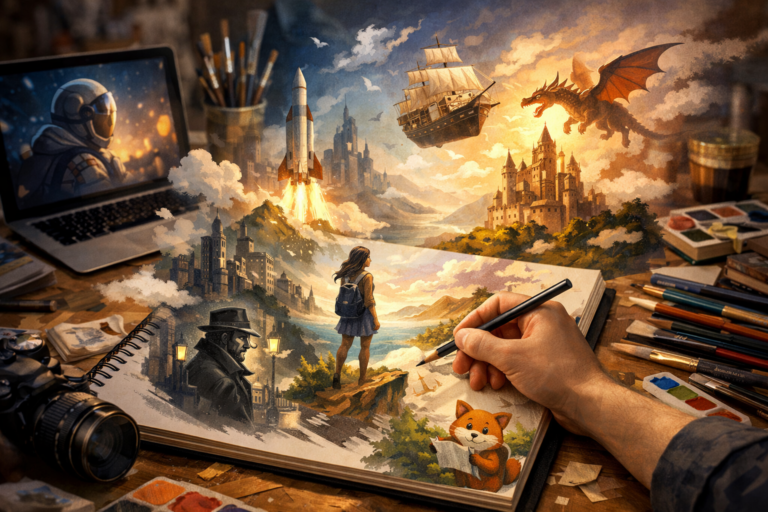
Illustration in Focus: How Visual Storytelling Shapes Art, Media, and Imagination
Illustration is a versatile art form that transforms ideas into engaging visual narratives across books, advertising, editorial media, and digital platforms. Its enduring power lies in its ability to clarify, persuade, and inspire through style, symbolism, and storytelling.
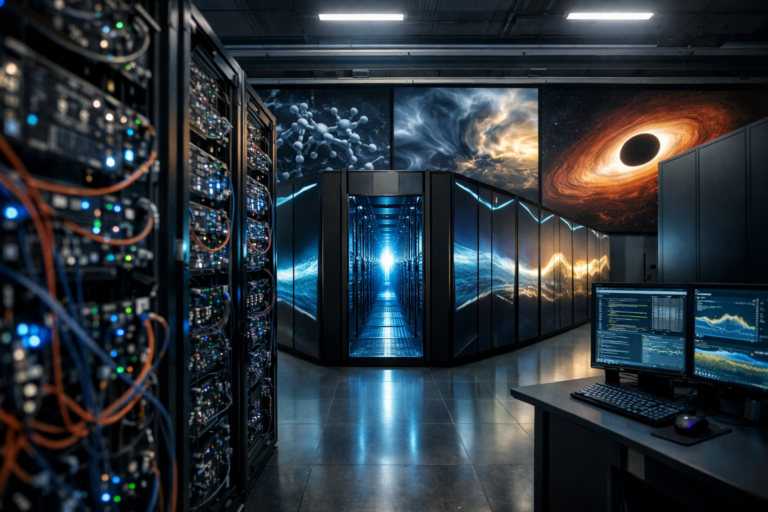
Inside Supercomputing: How the World’s Fastest Computers Solve Impossible Problems
Supercomputing sits at the frontier of modern computing, combining immense processing power with advanced architectures to tackle problems far beyond the reach of ordinary machines. From climate modeling to drug discovery, these systems are reshaping science, industry, and national strategy.
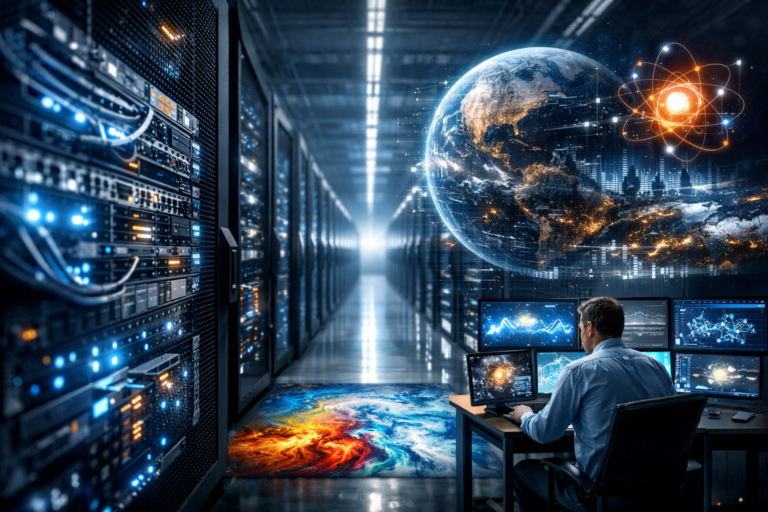
Supercomputing Explained: How Extreme Computing Power Solves the World’s Hardest Problems
Supercomputing combines massive parallel processing, advanced architectures, and high-speed networking to tackle calculations far beyond the reach of ordinary machines. From climate modeling to drug discovery, these systems are essential tools for modern science, industry, and national research.